Dealing with grids in Photoshop is a pain
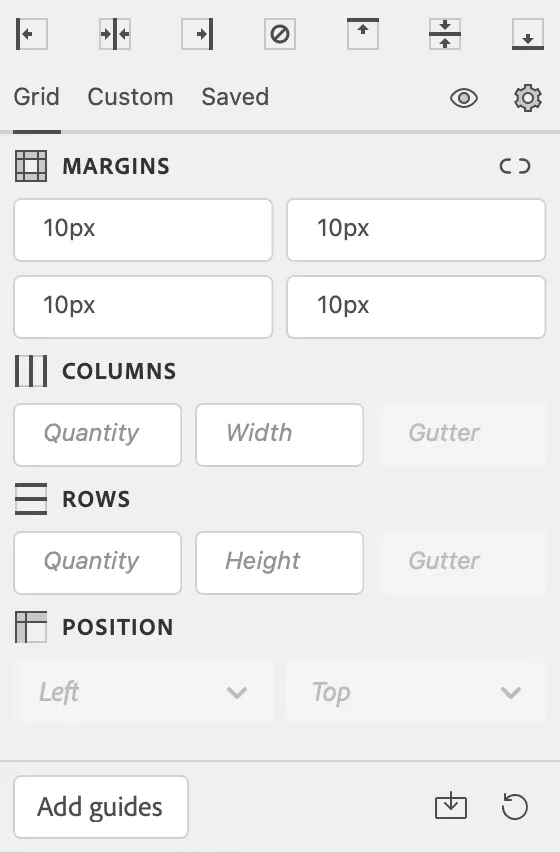
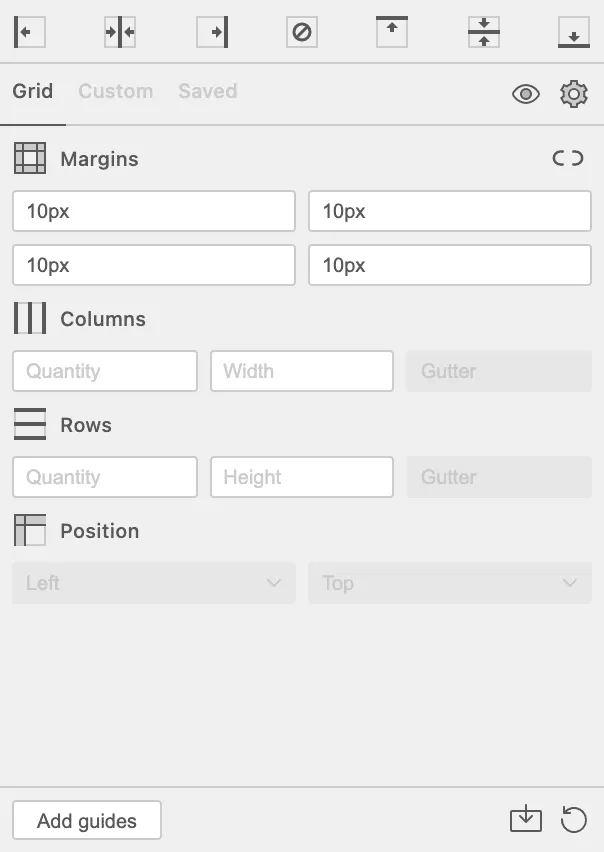
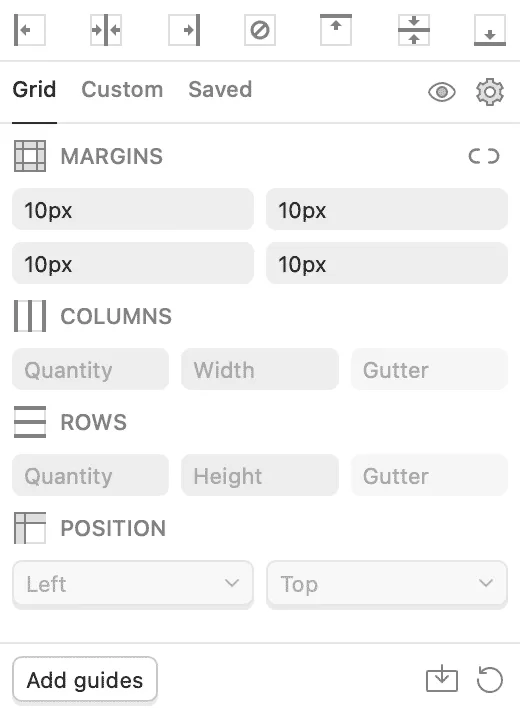
With GuideGuide, it doesn’t have to be. Pixel accurate columns, rows, midpoints, and baselines can be created based on your document or marquee with the click of a button. Frequently used guide sets can be saved for repeat use. Grids can use multiple types of measurements. Best of all it’s free. Honestly, if you haven’t started downloading it by now, you’re probably a masochist. Weirdo…
Grid Tab
- Fill in the fields and click the GG button to create your grid.
- Negative margin values will place the guides outside your selection.
- Hold the clear guides button to clear all input fields.
- Clicking the icon next to a margin field will apply its value to all margins.
- Clicking the + button will let you save the current values as a preset.
Sets Tab
- Double click a guide set to edit it.
- Hold the clear guides button to delete the selected set.
- Holding the GG button with a set selected will switch to the grid tab and populate its form
Installation
-
If you have the first version of GuideGuide installed, you may want to uninstall it first. To do so, delete the GuideGuide folder from the following locations.
Windows (32 bit): \Program Files (x86)\Adobe Photoshop \Plug-Ins\Panels\
Windows (64 bit): \Program Files\Adobe Photoshop \Plug-Ins\Panels\
Mac: /Applications/Adobe Photoshop /Plug-Ins/Panels/ Download and upzip GuideGuide.
CS5+ users using OSX Lion: You will need to install a patch for Adobe Extension Manager first.
-
Launch the Adobe Extension Manager.
Windows Users: You may need to run the Adobe Extension Manager as Administrator (right-click the Adobe Extension Manager icon and click “Run as Administrator”).
Click Install and navigate to the guideguide extension file (.mxp or .zxp).
Click OK.
You should now be able to find GuideGuide at Window > Extensions > GuideGuide
Does GuideGuide cost money?
Nope. Never has, never will. I made GuideGuide to make my life easier, not to make money. As it turned out, GuideGuide has made a lot of lives easier, which is all I could ask for.
Can I suggest features or report bugs?
Absolutely! Please submit your bugs or requests to the GuideGuide support repo on GitHub.
Which units can I use?
GuideGuide supports any units used by Photoshop. If you place an integer in a field, it will assume you want to use whichever unit is set as your document’s default unit. If you want to use a specific unit, just type it in the field like you would anywhere else in Photoshop. For example “20 px” or “5%”.
I get an error “The extension ‘GuideGuide’ does not contain valid signature. The extension will not be installed.’
This is a known bug with the Adobe Extension Manager. It has been fixed in the current version, but if you are out of date you can install the CS5 patch or CS5.5 patch.
The Adobe Extension Manager tells me I don’t have permission when I install GuideGuide.
This happens from time to time on Windows. You will need to launch the Adobe Extension Manager as Administrator. To do this, right click on the Adobe Extension Manager icon and select “Run as administrator.” Now you can click Install and naviate to the GuideGuide install file.
Why does GuideGuide allow duplicate guides?
I would LOVE to have GuideGuide avoid duplicate guides, but it unfortunately impossible. In CS4, Photoshop “forgets” a guide as soon as it hits the stage. In CS5, Photoshop remembers that a guide exists, but doesn’t keep track of where it is. Due to these unfortunate facts, there is no way to check if a guide exists before another is put in its place.
Photoshop flickers when I run GuideGuide.
Annoying isn’t it? As far as I can tell, there’s no way to fix that. It is a side effect of Photoshop trying to run a script.
Window > Extensions is greyed out.
Most commonly, this just means Photoshop is still loading its extensions. Check back in a couple seconds. If the menu doesn’t appear active after a short wait, the problem may be an issue with Phototshop, not GuideGuide.
Is there any difference between CS4 and CS5?
Each version of Photoshop works differently from the last. The CS5 version of GuideGuide is awesome. For the most part I’ve been able to replicate everything in CS4, but two features have remained unfixable: window focus and resizing.
Window focus:
I’ve tried and tried and tried to solve the problem of GuideGuide stealing focus (breaking keyboard commands until you click back on your document), but to no avail. I’ve tried so many things that until someone shows me a working sample of a CS4 panel dropping focus, I will assume that the problem is something with Photoshop, which will never be fixed.
Window resize:
The ability to restrict users from resizing the panel depends on where files get installed. The CS4 installer does not install GuideGuide in a way that can limit resizing, so those users will unfortunately see a resize handle. I can solve this problem by creating my own non-Adobe installer, but doing so limits users from managing plugins through the Adobe Extension Manager. I’m working on my own alternative system for updates and installs, which will hopefully solve this problem at some point.
What is “remaining pixel distribution”?
I’m a designer that thinks pixels are important. When it comes to columns, there is no such thing as a fraction of a pixel. Because of this, unless you make a grid that divides into columns equally, you will always end up with remainder pixels. Imagine you are creating a 3 column grid within a 10 pixel document.
10 ÷ 3 results in a remainder of 1. Remaining pixel distribution determines which columns are given the extra pixels. The default value for this is "bottom right." This can be changed in the Settings tab of GuideGuide